The guide
Everything Phosphor does, from install to the last setting, in order. Words in code are what you see in the app.
01 install
Get Phosphor on Google Play. You pay once. There are no ads, no subscription and no account. Phosphor runs on Android 10 or newer, on phones and tablets, in portrait and landscape.
02 first run and setup
A fresh install opens three short screens, the first run. Each one is a list you scroll, and each one is optional.
1 of 3 · pick a look: tap a look and the whole home changes at once.skip setupkeeps this look and two pages.2 of 3 · pick your pages: tick the ready pages you want. At a glance and music are ticked to start, and at least one stays.3 of 3 · make it your home:set as home,allow notificationsandallow weather. Tapstartwhen you are ready.
start ends the first run and begins the tour. Back goes one screen back, and on the first screen it skips. Change it all later: tap ◆ up top, then looks or ready pages.
Finish setup
The rest waits in the setup guide. While a step is open, the top bar says ◇ finish setup and the main menu has a finish setup row with how many are left. The guide has six steps, and each step has a button that opens the right system screen. A step ticks itself once it is done.
home screen: make Phosphor your home screen, so the home button always brings you here.lock screen: use the Phosphor wallpaper on the lock screen. When Android asks, pick "Lock screen" or "Home and lock screen".notifications: allow notification access for the log, the preview and media controls. Nothing leaves your phone.system lock cards: Android draws its own cards and clock over the lock screen. Set lock screen notifications to "Don't show any notifications" and turn off "Dynamic clock".weather, calendar: allow location for local weather, or type a city instead. Allow the calendar for your events.battery: tips to save power, withbattery saverandmotion offbuttons. See battery.
Under the steps the guide offers take the tour, pick your look (the presets) and lock gesture (see lock gesture). stop reminding hides the nudge. Open the guide any time from the main menu, help, setup guide, or type :setup in search.
On a phone that had Phosphor before version 1.86, there was no first run, and the hint reads ◇ setup n/6 until the first three steps are done.
03 set as home screen
The easiest way is set as home on the third first run screen, or in the main menu, where the row stays until Phosphor is your home. Pick Phosphor when Android asks. You can also do it in Android settings. On most phones it is under Apps, then Default apps, then Home app.
To go back to your old launcher, pick it in the same place. Phosphor keeps your pages and settings.
04 the tour, tips and the cheat sheet
The tour starts by itself after the first run. It has three steps, each one gesture tried on your real home: swipe sideways between pages, swipe up for apps and search, and hold for the menu. A ghost finger shows it, then you do it. The card has ‹ back, skip › and end; on the last step skip reads finish ›. TalkBack reads each step.
A ready page often fills the whole screen with panels. Then the hold step asks you to tap ◆ up top instead, which opens the same menu. With the top bar hidden it asks you to hold a panel and let go, then tap main menu in its menu.
The last card offers the gesture cheat sheet. If you changed your pages or panels during the tour, it also offers undo the tour, which puts them back, or keep it like this.
Tips
After the tour, short tips show one at a time, the first time each thing is near: the ◆ menu, the page name up top, your shortcuts, reading a notification, quick actions, a panel's menu and borders. A tip waits until the home is calm. got it puts it away for good. Main menu, help, tips shows them all again.
The cheat sheet
The gestures cheat sheet lists every gesture in groups: move around, edit the home, apps and notifications, panels and type. Tap a row to try that gesture on your own home.
Ways in: the main menu, help, then tour or gestures, or type :tour, :tutorial, :gestures or :man in search.
05 gestures and the main menu
- swipe sideways
- next or previous page
- swipe up
- apps and search
- pull down
- what you picked: the full screen sheet by default. See pull down.
- double tap empty space
- lock the phone, once lock gesture is on
- hold empty space
- the main menu
- tap ◆ up top
- the main menu
- tap the path up top
- the
gomenu: every page, all apps, search, notifications - home button
- first page
- tap a shortcut
- open the app
- hold a shortcut
- pin, hide, app info
- tap a notification
- open it
- hold a notification
- read it all
- swipe a notification left
- dismiss it
- tap a quick action
- toggle it
- hold a quick action
- pick your quick actions
- tap the weather
- next place
- tap the clock
- your clock app
- hold a panel, let go
- its own menu: size, move, replace
- drag a border
- resize panels
- double tap a border
- side by side, or stacked again
- hold a panel, drag
- move, swap or split, in edit mode or with
keep in placeoff
When the top bar is hidden, tap the empty top row for the main menu, and use pages in it in place of the path. Nothing needs a swipe: every swipe has a tap way too.
The main menu
Hold empty space, or tap ◆ up top. If a page has no empty space, hold a panel and let go: its menu has a main menu row. Or type :menu.
- looks
- the twenty presets, then fine tune for one setting at a time
- ready pages
- add a new page, ready made or classic. See pages.
- add a panel
- the picker. See add a panel.
- pages
- every page, this page's name, order and removal, and go to
- edit layout
move and size(edit mode),move a panelfrom a list, andkeep in place- set as home
- only until Phosphor is your home
- finish setup
- only while setup steps are open
- help
- tour, gestures, tips, commands, setup guide, text editor, editor look, privacy policy, the version and reset to defaults
- settings
- every setting. See the settings map.
06 what is on the screen
The top bar
A path like ~/dashboard says which page you are on. Tap it for the go menu. Tap ◆ phosphor for the main menu. Once you set your name under settings, you, it reads like ◆ sam@pixel. On a fresh install the top bar shows and the phone's status bar is hidden. Change them under settings, home, top bar and status bar. With the status bar hidden, a swipe down from the top edge shows it for a moment.
The panels
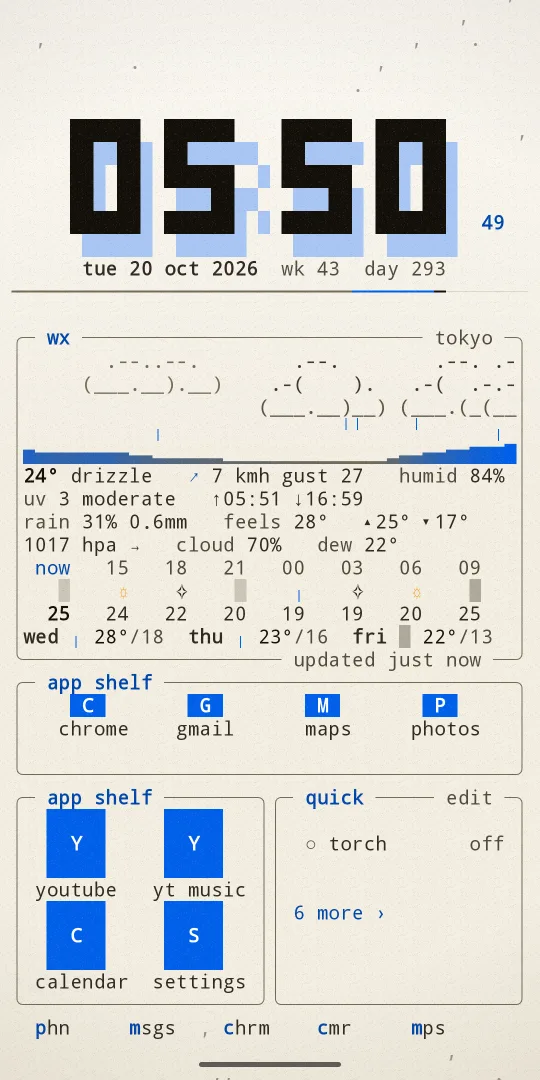
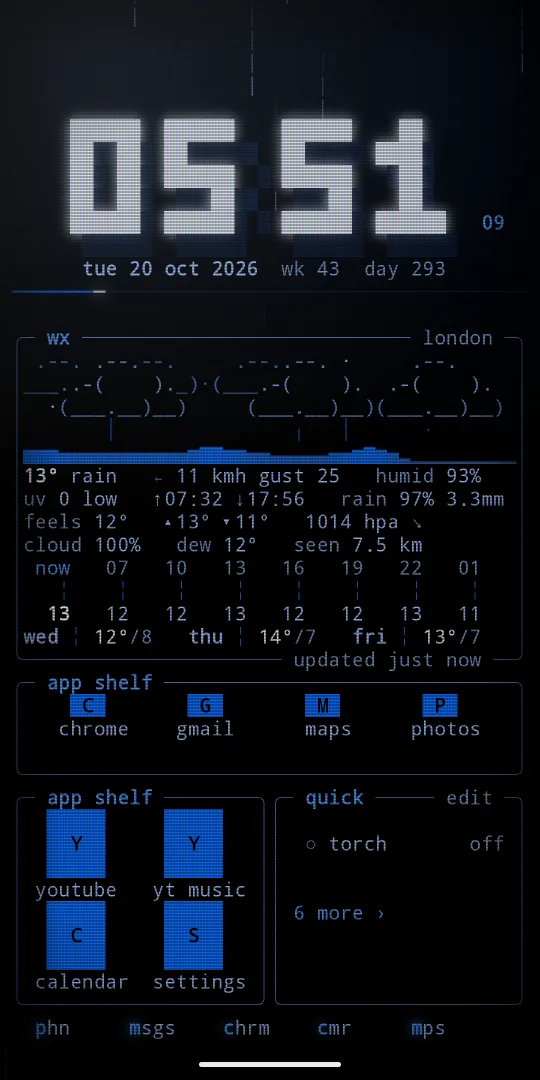
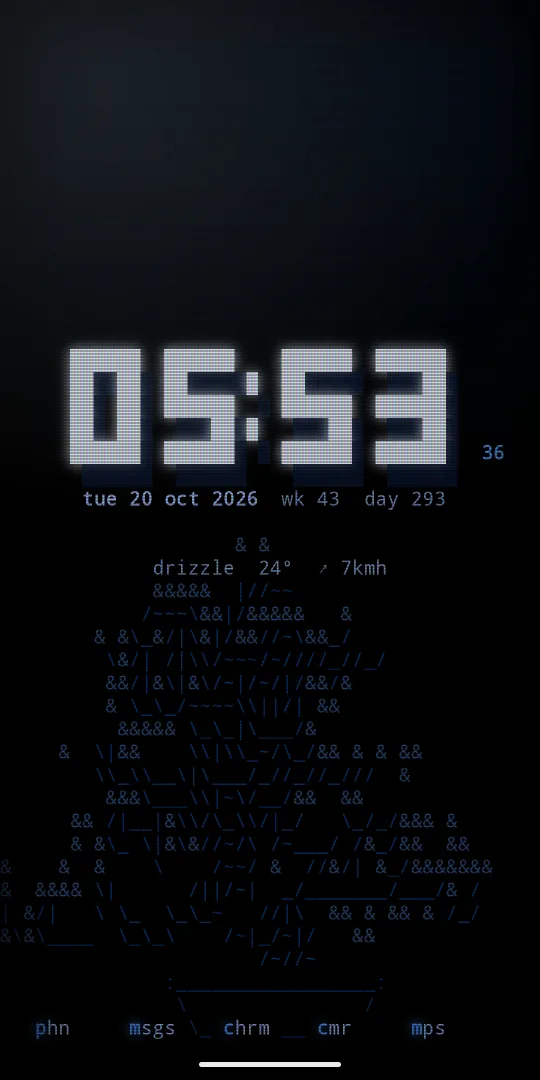
- clock: square pixel digits. When a digit changes it glitches, then crumbles into falling dots. Tap it to open your clock app.
- weather: the real weather in one of three styles: live sky, big numbers or waybar. See weather styles. Bigger panels add hours, rain, UV and more.
- forecast: the days ahead.
- notifications and inbox: your notifications, newest first. The inbox has notifications and events as tabs.
- agenda and month: what is coming up, and the month with today lit and busy days marked. Tap to open your calendar.
- quick actions: torch, wifi, sound and more.
- apps: your favourite apps as a list.
- app shelf: app icons you pick, one per cell, as a row or a block. See the app shelf.
- notes: a note pad, saved as you type.
- briefing: your day as a short report.
- now playing, player, cava and radio: what plays, with controls, and the music as dancing bars. See music.
- monitor: cpu, memory, disk and network.
- Every tool is a panel too: habits, countdown, water, word clock, ip, cyberspace, the terminal and the rest. See tool pages and panels.
- With phosphor pro: Android widgets from your other apps inside a phosphor box, 2fa codes, news, gps, sensors, friend, clipboard, passwords, the editor, the live world panels, matchday, devices and health.
Panels show more when they are bigger and drop the least useful parts when they are smaller.
The app shelf
The app shelf is in the phone group of the picker. It holds one app per cell, at any size: 1x1 is one app, a 4x1 is a row of four, a 1x4 is a column, and 4x2 or bigger is a grid. It opens as a 4x1 row. Pick how many apps go in a row, up to 8. Each shelf keeps its own apps, up to eight shelves in all.
- Add an app: tap a
+on the shelf and pick fromadd to the shelf. - Open an app: tap its cell.
- Change the shelf: hold an app and let go. The panel menu starts with
open,change app ›,move left,move rightandremove from shelf, thenapps on the shelf ›andlabels. - Size:
sizein the same menu, or the◢corner in edit mode. - Labels: auto, on or off. Auto shows names when there is room. The same row is in settings,
home,app shelf labels.
Each icon is a block with the app's first letter, lit in your theme. TalkBack reads "app shelf, 4 apps" and each app by name, and apps on the shelf lets you reorder by taps.
The app dock
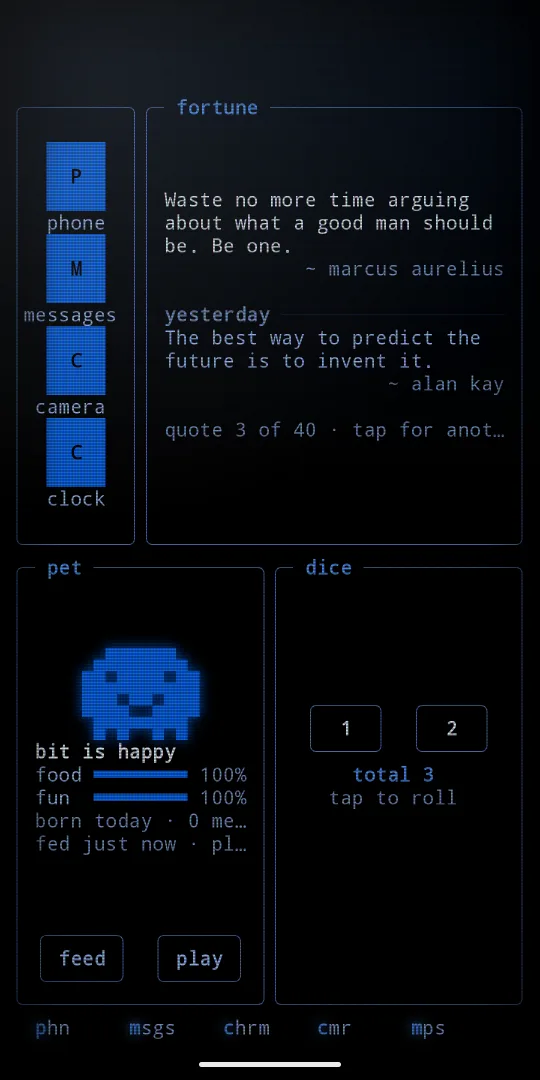
At the bottom sits the app dock: one row of up to five shortcuts, your pins first, then the apps you open most. Names are made short, like msgs for Messages, with the first letter lit. Show or hide it under settings, home, app dock. The gesture bar sits on your look, not on a grey strip.
07 pages
Add up to ten pages and swipe between them. A fresh install starts with the pages you ticked in the first run: at a glance and music, unless you changed them.
Ready pages
Ready pages are the way to make a page. Hold empty space and tap ready pages, or type :ready. Each one adds a new page, so your other pages stay as they are. Move, size or remove anything on it after.
- at a glance
- clock, weather and what is next
- daily driver
- time, sky, plans and messages
- minimal
- a big clock and what plays
- music
- player and dancing bars
- focus
- pomodoro and your todo list
- night stand
- big clock, alarm and battery
- traveller
- world clocks and the forecast
- well being
- water, breathing and habits
- geek
- fetch, monitor and your ip
- cyberspace
- the terminal network and hysh
- network
- ip, ping and trace (pro)
- explorer
- gps and sensors (pro)
- news desk
- news and on this day (pro)
- vault
- 2fa codes, passwords, clipboard (pro)
- space
- iss, launches and aurora (pro)
- matchday
- your team, live score and table (pro)
- world watch
- radar, quakes and rates (pro)
The classic group at the end has an empty page, to fill with panels of your own, and the eleven classic layouts: dashboard (a bit of everything), inbox (notifications first), weather (big sky and forecast), agenda (month and events), media (now playing), radio (internet radio by cliamp), apps, monitor (system gauges), today (your day as a briefing), notes (clock and a note pad) and zen (just the clock). One that is already a page says on page n, and a tap goes there.
Any tool can also fill a whole page: type :layout and its name, like :layout habits. See tool pages and panels.
Manage pages
Hold empty space, then tap pages. It lists all pages, and add a page opens ready pages. Under this page you can give it a name, move it with ‹ n of m ›, or remove it. On a classic page, panels lists its borders. Under go to are all apps, search, notifications and lock phone.
Page names
Give any page a name of your own: hold empty space, pages, then name under this page, or type :rename. The name shows in the path up top, like ~/work, and in the go menu. A name is up to 16 characters. Leave it empty to go back to the page's own name. TalkBack reads it too, like "page 2 of 3, music".
08 edit mode
Hold empty space, then edit layout, move and size. Or type :edit. The top bar turns into a strip of three buttons:
- + add
- open the picker to add a panel
- move
- pick a panel from a list and move it
- done
- leave edit mode
Pages, looks and settings are in the main menu, one hold or a tap on ◆ away.
Free cells show a blueprint: a dashed grid with a + and the size of the free space. Each panel gets a frame with its size, a ✕ to remove it and a ◢ corner to resize it. The line under the strip says what you can do, and tapping it opens help.
Back, home, done or opening the app list leave edit mode. Every change is already saved.
Keep in place
keep in place is on by default. It stops panels moving by accident outside edit mode. Edit mode always moves and sizes them. Turn it off in the main menu, edit layout, in any panel's menu, or in settings, home.
The page is a grid of cells: 4 columns on a phone, 6 on a small tablet or a phone in landscape, 8 on a big tablet. Sizes read like Android widgets: 4x2 means 4 columns by 2 rows. Landscape and tablets keep their own placement.
09 add a panel
- Hold empty space and tap
add a panel, or type:add. In edit mode tap+ add, or tap a free+spot to aim at it. - The picker shows cards in groups: time and weather, phone, media, system, tools and pro. Each card has a live preview, its size and one line about it. Type to search.
- Tap a card. It goes into the spot you aimed at, or to the best free spot. The strip then offers
put it here,more waysandcancel. - Or hold a card and drag it onto the page. A lit outline shows where it lands.
A new panel opens at its own size and never takes more than half the screen. A panel that is already on the page says on this page.
10 move, resize and remove
In edit mode:
- Tap a panel for its menu:
what it shows, the panel's own rows,size ›(wider, narrower, taller, shorter),move ›,replace with ›,move to page ›,add a panel,keep in place,removeanddone. - Hold and drag a panel to move it. Drop it on another panel to swap them, or near an edge to split that space.
- Drag the ◢ corner to resize. It grows only into free cells.
- Tap ✕ to remove a panel. The strip offers undo for 6 seconds.
Outside edit mode, hold a panel and let go for the same menu, with edit layout and main menu added. Tool panels add their own rows to it. With keep in place off, you can also hold and drag a panel outside edit mode.
While you drag, a line at the top or bottom says what will happen: MOVE, ADD, SWAP, SPLIT, RESIZE, or NO ROOM when it does not fit.
11 classic pages and borders
Classic pages like dashboard and inbox are tiled: panels share borders. You can change them without edit mode:
- Drag a border between two panels to make one taller and the other shorter.
- Double tap a border to put two panels side by side, or stack them again.
- Hold a panel's top edge and drag it onto another panel to swap them.
On a wide screen, drag the gap between the two columns, or double tap it to mirror them. Hold empty space, then pages, then panels lists every border with the same actions, plus reset splits.
Edit mode works on classic pages too. The first real change saves the page as your own, with the same name.
12 apps, search and commands
Swipe up, or use all apps and search in the go menu.
- Type to find any app, even with typos. Matches light up letter by letter.
- Enter opens the top match, or searches the web.
keyboard first(settings,home) brings up the keyboard as soon as you swipe up.open the only matchopens the app by itself once your typing leaves just one.- Hold an app to
pin to the top,hide from the list, openapp infooruninstall. app list(settings,home): roomy, or compact with two columns and tighter rows so more apps show at once.- With pro,
contacts in search: type a name or number to call or text. Off until you turn it on. - Apps are listed most opened first. Switch to a to z under settings,
home,app order. In a to z, drag the letter rail to jump.
Commands
Type a colon first, then a command. Without the colon, a matching app wins. : alone lists them all, and :help shows a short list where each row runs its command.
- :menu
- the main menu
- :looks
- pick a look
- :ready, :layout
- add a ready or classic page
- :layout zen
- turn this page into a classic layout or a tool, like
:layout habits - :add
- add a panel to this page
- :edit
- edit mode
- :pages
- add, move or remove pages
- :rename
- name this page
- :settings
- open settings
- :theme amber
- use a theme (
:themealone picks the next one) - :motion
- the next moving scene (
:wallpaperand:ambiencework too) - :quick
- pick quick actions
- :lock
- lock screen settings
- :saver
- screen saver while charging
- :link
- pair devices and sync the theme
- :setup
- the setup guide
- :tour, :tutorial
- the three main gestures, hands on
- :gestures, :man
- the gesture cheat sheet
- :editor
- the txt and json editor (pro)
- :cs, :cyberspace
- cyberspace, the terminal network, full screen
- :help
- a short list of commands
- :boot
- replay the boot
- :sl
- a steam train, for when you meant ls
13 notifications
Notifications need notification access (setup step 3). New ones type themselves in.
- Tap a notification to open it.
- Swipe left to dismiss it. A strip fills in from the right; let go once it says
✕ let go. On a grouped card it clears all of that app's notifications. One that cannot be cleared saysstays. - Hold it for a preview with the full text and
[ open ],[ dismiss ]and[ close ]. The preview never marks it read or removes it unless you tap dismiss. - When they do not all fit, each app gets one line with a count like
×3. - A bigger panel adds a summary, like "7 from 3 apps", and arrivals per hour.
- The preview shows the notification's own buttons, like mark as read and archive.
Under settings, home:
- notifications ›
filter: show all, hide system, or hide system and silent. System noise like charging and USB notices stays out by default.hidden appslists the apps you hid with a hold.- notification badges
- count, dot or none on your apps
Pull down
A pull down on home opens what you pick under settings, home, pull down ›: the full screen sheet, android notifications, android quick settings, app search, nothing, or open an app of your choice. Over a list that scrolls, the list comes first.
The sheet follows your finger. Under the sheet shows you pick its parts, and try it opens it:
- clock
- auto, big, slim or off
- alarm, event and weather
- the glance line: your next alarm, your next event and the weather in one line
- android shade buttons
- a button that opens Android's own notification shade
- quick actions
- tiles like Android's own, chips, two rows, one row or off. Tiles come with media, screen, ring and alarm sliders.
- now playing
- big, small or off
- notifications
- on or off, and
notifications firstto put them on top - month, when there is room
- this month under the rest
On a short screen the clock, the player and the quick rows get smaller first.
14 quick actions
Quick actions show up to seven actions you pick from nineteen: torch, wifi, bluetooth, sound, do not disturb, location, battery saver, airplane, mobile data, nfc, hotspot, volume, brightness, rotation, cast, camera, timer, calculator and screen.
Torch, sound and do not disturb switch in place. Others open the right system page and show their live state. A taller panel adds sliders for media, screen, ring and alarm volume, each with − and +.
Pick your actions under settings, home, quick actions, or hold a quick action.
15 weather and places
Weather comes from Open Meteo. There is no account and no key. It is fetched at most every 30 minutes.
Under settings, clock and weather, weather places:
add a city: type a name. With only cities set, no location permission is needed.add my location: use the phone's location.- Tap a place in the list to remove it.
calendar app picks which app opens your events and days, so Android stops asking each time. ask each time leaves it to Android.
Weather styles
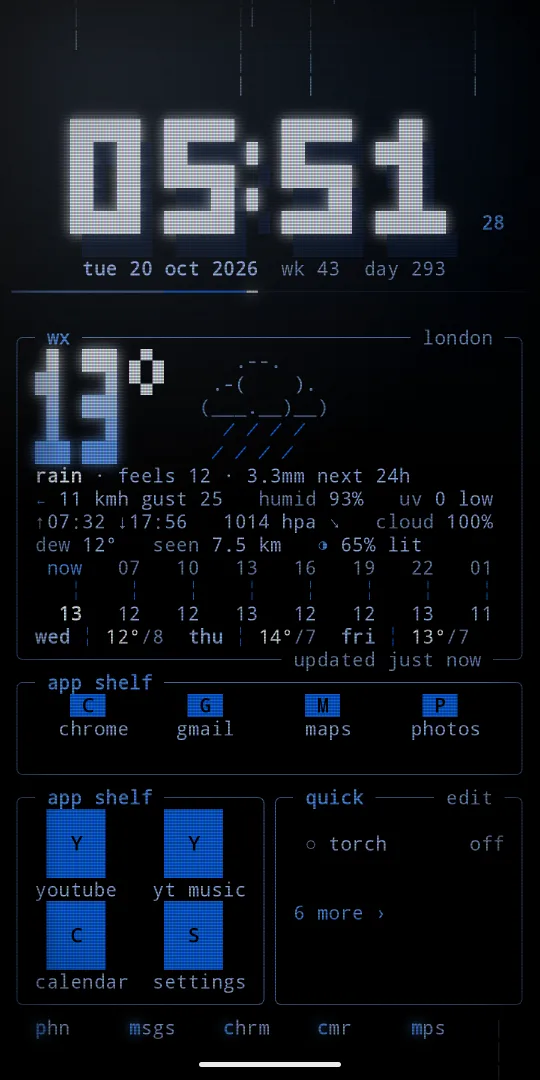
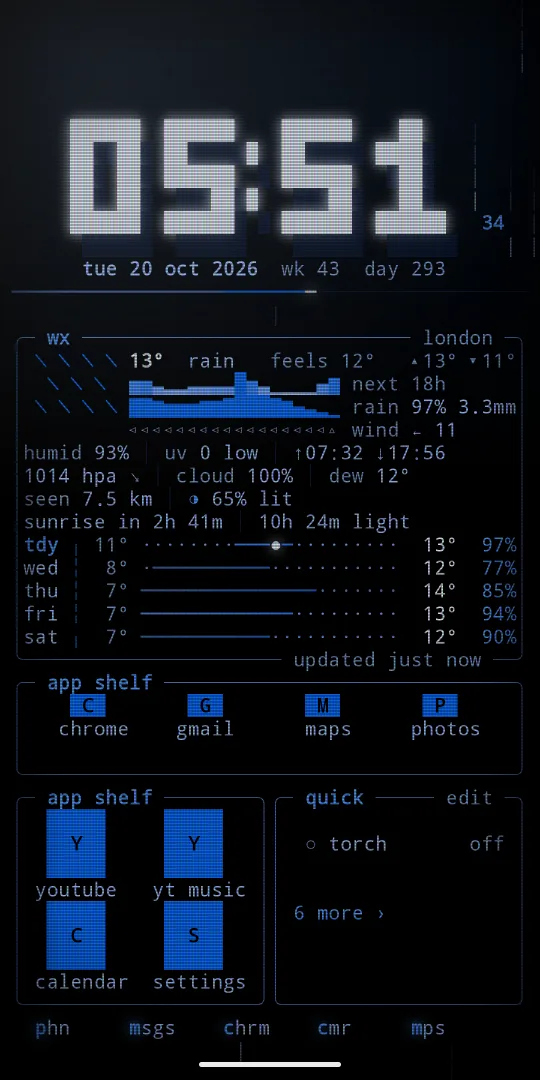
Hold the weather panel and let go. Its menu has style and weather places. Tap style, or its ‹ ›, to step through:
- live sky
- the sky in moving glyphs: stars, the sun or the moon in its phase, drifting clouds, fog, rain, snow and lightning, over a line of the next hours
- big numbers
- the temperature in big block digits, a weather picture beside it, and a summary like "rain · feels 11 · 4 mm next 24h"
- waybar
- a waybar style header, then the next hours as three lines: temperature, rain and wind
The style is the same for every weather panel. Live sky is the only one that moves. So big numbers and waybar cost less battery.
With several places, tap the weather panel to step to the next one. The lock screen and the sky tool follow the place you show. Also here: clock 12h or 24h, and units °c or °f.
16 music and radio
- now playing: title, artist, a seek bar and play controls. It appears only while something plays, and needs notification access.
- player: big controls, the spectrum, album art and the queue when the player shares one.
- cava: the music as dancing bars, with the cover behind them if you like.
- radio: internet radio stations from cliamp. Radio by cliamp, radio.cliamp.stream. Nothing connects until you press play. Next and previous switch station.
More than one player? The app name sits on the top edge of the media box. Swipe it sideways to switch players, tap it to open that app, or hold it for the list of players. Phosphor stays on the app you last started, even between songs.
Hold a music panel and let go. Its menu has players and these rows:
- visualizer
- ‹ › steps through seven styles: mirror, bars, blocks, wave, dots, term and mono. Peaks glow, caps fall smoothly, and the music panel's frame pulses with the bass.
- bar reflection
- a water like reflection under the bars, or off for a clean floor
- album art
- the cover in square pixels, in its
real coloursor yourtheme inks - cover behind player
- the album cover softly blurred behind the player
Real visualizer (the same menu) makes the bars follow the loudness of the music, and gives now playing on the lock screen real cava bars too. Android asks for the microphone for this, because that is the permission that reads the sound mix. Nothing is recorded, kept or sent. Off until you turn it on.
17 tool pages and panels
Any page can be a tool: type :layout and the tool's name, like :layout habits. Then the tool fills the whole page and fits any text size. Many tools also come on a ready page. Every tool is also a panel in the picker, so you can put several on one page. Hold a tool panel and let go for its own rows, after what it shows.
- todo
- a todo list to add, tick and clear
- pomodoro
- a focus timer with breaks and rounds. A focus round counts down 5 4 3 2 1 with a soft buzz first. Tap during the count to call it off. It buzzes when a phase ends, even with the screen off.
- calc
- a calculator with big keys and exact maths
- world
- the time in other cities
- sky
- sunrise, sunset and the moon
- battery
- level, heat, power and the last day
- storage
- disk usage as a map
- fetch
- system info like fastfetch
- meeting
- your next meeting and when it starts: "in 25 min", "now" while it runs, or "tomorrow 9:00". Tap it to open the event.
- alarm
- your next alarm, sleep cycles and quick alarms
More panels
- network
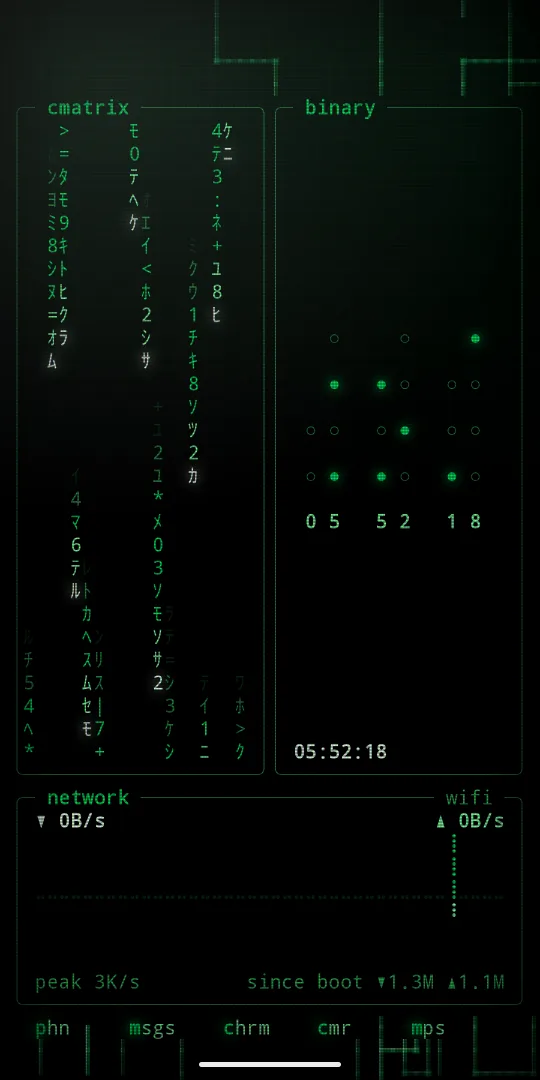
- download and upload speed, a trace, the busiest second and totals since boot. In the system group. Tap for wifi.
- habits
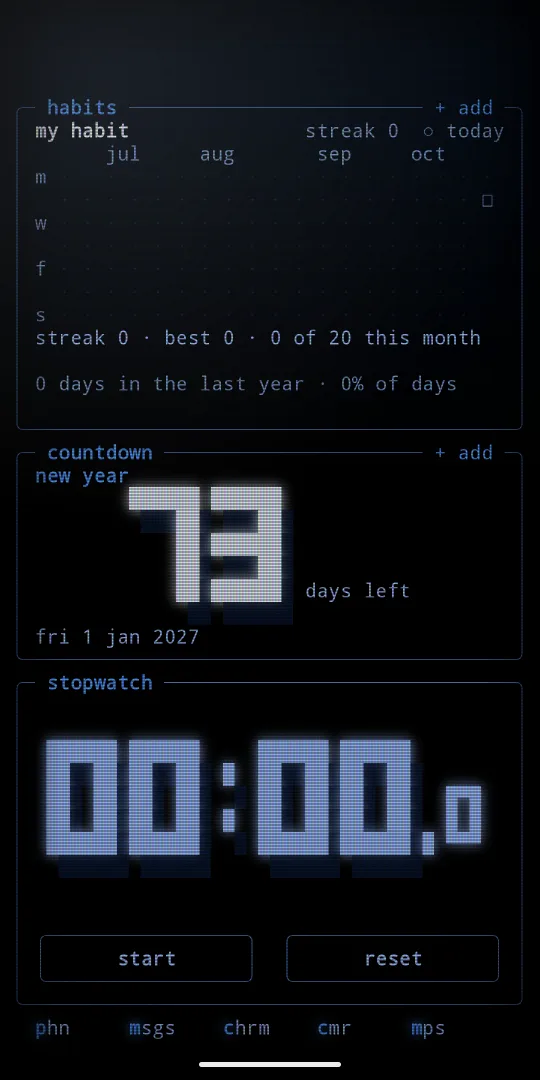
- habits with goals and streaks, and today at a glance. Tap a habit to mark today, hold it to rename or set its goal. Rows:
add a habit,week starts. - countdown
- days left to a date you pick, like "trip 24 12 2026", with a gauge of the wait. Row:
add a date. - stopwatch
- a stopwatch with laps. It runs on with the app closed. Rows:
tenths,reset. - progress
- how far through the day, week, month and year, as gauges. Row:
week starts. - binary
- the time as a binary clock. Rows:
style(bcd or binary),seconds. - fortune
- a quote of the day, said by a cow. Tap for the next one. Rows:
cow,next quote. No network. - pet
- a pixel pet you feed and play with. It sleeps from 22 to 7 and never dies. Hold it to rename.
- dice
- roll dice or flip a coin. Row:
roll: a coin, one to five dice or a d20. - matrix
- cmatrix, falling code. Tap to pause. Rows:
speed,glyphs(kana, binary, hex),rain. - since
- days since a start, with milestones
- punch
- clock in and out, work hours by week. Your work time shows on the lock wallpaper while you are clocked in.
- water
- a glass that fills as you drink
- breathe
- box breathing with a dot tracing the shape
- tally
- a big tap counter
- qr
- a code a friend can scan
- tldr
- a command of the day
- air
- air quality and pollen
- holidays
- the next public holidays and bridge days
- onthisday
- on this day: what happened on this date in history
- wordclock
- the time in words, on a grid of letters
- snake
- a snake game that plays itself until you touch it
- pipes
- pipes.sh, neon pipes that crawl and turn
- terminal
- hysh, a tiny shell that opens apps and sets themes
- gauges
- conky style rings for cpu, memory, storage and heat
- dash
- an eww style card with a greeting, chips and a quote
- ip
- your address, netmask, gateway and dns, as ipcalc shows them
- art
- ascii art, or your own words as a banner
- photo
- a photo of yours, in the theme's colours: duotone, halftone, ascii, blocks or original
- whoami
- your name, contact and motto as an id card, from settings,
you - donut
- donut.c, the spinning ASCII torus
- fire
- aafire, the ASCII doom fire. It burns hotter as the cpu works.
- life
- Conway's game of life. Tap to seed it.
- glyph
- a 25 by 25 dot matrix: the clock, battery, a timer or a level
- ring
- your day as a ring round the clock, with your calendar on it
- lifedots
- your life, year, month or day in dots
- mood
- one tap a day for how the day was, and your year in colour
- fasting
- your fasting window as a ring
- cycle
- a private period tracker. It stays on this phone and never goes in a backup.
- calendars
- today in other calendars
- live
- downloads, rides and timers from your other apps, as live bars
- planets
- the planets up tonight and where to look, worked out on the phone
- word
- a word of the day with its meaning and an example
- define
- look up a word: meanings, examples and words that mean the same, from Wiktionary and Datamuse
- convert
- units offline, and money with the European Central Bank's daily rates
- sea
- waves, swell and sea temperature at a spot you pick
- cyberspace
- the cyberspace.online terminal network. The public feed is free. With pro, sign in for your feed, replies, inbox, C-Mail, cIRC chat rooms and a braille globe of members. Your password is used once and never kept.
In the picker, countdown, since, progress, binary, word clock and on this day are in the time and weather group, cyberspace and meeting in phone, network, terminal, gauges and ip in system, and the rest in tools.
Pro panels
These come with phosphor pro. Most are a page and a panel like any other tool.
- widgets
- Android widgets from your other apps, drawn inside a phosphor box on the grid. A widget stack holds several in one box: swipe to flip through.
- 2fa codes
- an authenticator for your sign in codes, kept encrypted on this phone only and never in a backup. Scan a QR code with the camera or from a picture, bring all your codes over from Google Authenticator in one scan, and keep your own backup file sealed with a passphrase.
- editor
- plain text and json files: open a file, format it, check it and walk it as a tree.
editor lookin settings changes its extras. - passwords
- strong passwords and passphrases, made on the phone and never saved. The clipboard is cleared after.
hide passwordsin settings keeps them hidden until tapped. - clipboard
- what you copied, sealed on this phone, with pins. Off until you turn it on. Private copies like passwords are skipped.
- friend
- fli, the terminal pet, as a panel: 18 pets with big line art, five traits (kindness, patience, playfulness, wisdom and humor) and 600 bits of everyday life advice. Feed it, pet it, play with it and ask it for advice. Roll an egg or type a seed.
- news
- headlines from your feeds, like newsboat: any RSS or Atom feed, unread marks, a ticker tape style, a reader with
[ open ↗ ]and[ share ], and OPML import and export. It starts with Hacker News, Ars Technica, The Verge and BBC World, and fetches only while it is on screen. - gps
- your position, the sky with every satellite, signal bars, a trail, course and the place name, like cgps.
listen withgps, balanced or low power.position asdecimal or degrees. - sensors
- a bubble level, a compass, live motion and rotation traces, pressure and light history, like conky
- radar
- live rain radar around you, on a sweeping scope
- aurora
- northern lights from the live Kp index
- quakes
- earthquakes on a world map
- iss
- the space station and when to see it
- launches
- a countdown to the next rocket launch
- rates
- currency rates with a chart
- ping
- latency to a few hosts and whether your sites are up. On Android 17 it asks for local network access before it pings your router.
- git
- your GitHub or GitLab contribution graph
- trace
- the route to any host, hop by hop, with loss and latency, as mtr shows it. No root needed.
- ambience
- a wallpaper scene in a box, like an aquarium, fire or lava, fed by your phone
- matchday
- follow up to 3 teams from football, NBA, NFL, NHL and more: a countdown to kickoff, then the live score, minute, goals and cards, form, standing and the league table. It fetches only while it is on screen.
- devices
- your buds, headphones, watch and car with their battery, and the last day as a graph. It never scans.
- health
- steps toward your goal, heart rate and last night's sleep with its stages, from Health Connect. Without Health Connect it counts steps with the phone's own step counter. Read on this phone only, and nothing in the background.
- people
- your favourite people. Tap one to call or text.
- wifi
- the wifi networks around you, their signal and channels
- ticker
- stocks and coins with a chart
- lyrics
- the words of the song that plays, in time
- screen time
- time on your phone today, app by app
- data
- mobile and wifi data this month
- apod
- NASA's picture of the day in your theme's colours
- speed
- a speed test: download, upload and ping, from Cloudflare
- uptime
- your own sites, up or down this month
- hass
- your Home Assistant, one tap away: lights, switches and readings. Your token stays on this phone.
18 looks, presets, crt, day and night
Hold empty space and tap looks, or type :looks. It lists the presets, then my own look, then fine tune. Settings has the same looks and fine tune rows.
Fine tune
Fine tune changes one look setting at a time:
- theme ›
- one list of every theme in groups: phosphors, rice palettes, day and night, and from your computer. Each has its own colours beside it. Pro themes are in the same list.
- picture
- ‹ › steps through Phosphor's own painted pictures behind the grid, or off for a solid screen
- your picture
- any photo of yours behind the grid. See your own picture.
- motion
- ‹ › steps through the moving scenes. See motion.
- live weather
- real rain, snow, fog and thunder over the scene. See live weather.
- crt ›
- off, glass, or a pro tube. See crt.
- font
- system mono, vt323, or your own font
- load font file
- pick a font file of your own from the phone
- text size
- small, medium or large
- day and night ›
- a day theme and a night theme, and the blue light filter. See day and night.
Glass follows the picture. There is no glass row.
Presets
Each preset is a whole look in one tap: theme, picture, motion, crt, weather style, live weather and day and night. Pages, panels, text size and your phone wallpaper stay as they are. my own look brings back the look you had before the first preset, your own picture too. A preset built on a pro theme shows a pro tag, and without pro a tap opens the pro menu. There are twenty, in two groups.
phosphor looks
- classy black
- black glass on black silk (pro)
- camel and navy
- a camel scarf on navy satin (the default)
- cream and forest
- forest ink on cream paper
- eink paper
- grey ink on paper, nothing moves
- evergreen
- cream on forest, fireflies
- emerald
- jade glass, emerald satin (pro)
- rose
- rose gold, falling petals (pro)
- liquid glass
- smoked glass, flowing colour
- house
- true black, one blue light
- green screen
- green phosphor, matrix rain
- neon dusk
- pink neon dusk at warp speed (pro)
rice palettes, the colours people run on Hyprland and in their terminals, each on a solid screen with a calm scene:
- catppuccin
- soft pastels, mocha, quiet stars
- tokyo night
- neon city blues in the rain
- gruvbox
- warm retro, glowing embers
- nord
- arctic blue, falling snow
- catppuccin day and night
- latte by day, mocha by night (pro)
- dracula
- vampire purple, meteors (pro)
- rose pine
- muted rose, falling petals (pro)
- everforest
- green forest, fireflies (pro)
- kanagawa
- the great wave, ink and tide (pro)
Eink paper is grey ink on warm paper with no colour and no glow. The clock does not glitch, and the preset turns motion, crt and live weather off, so the screen changes only when something real changes.
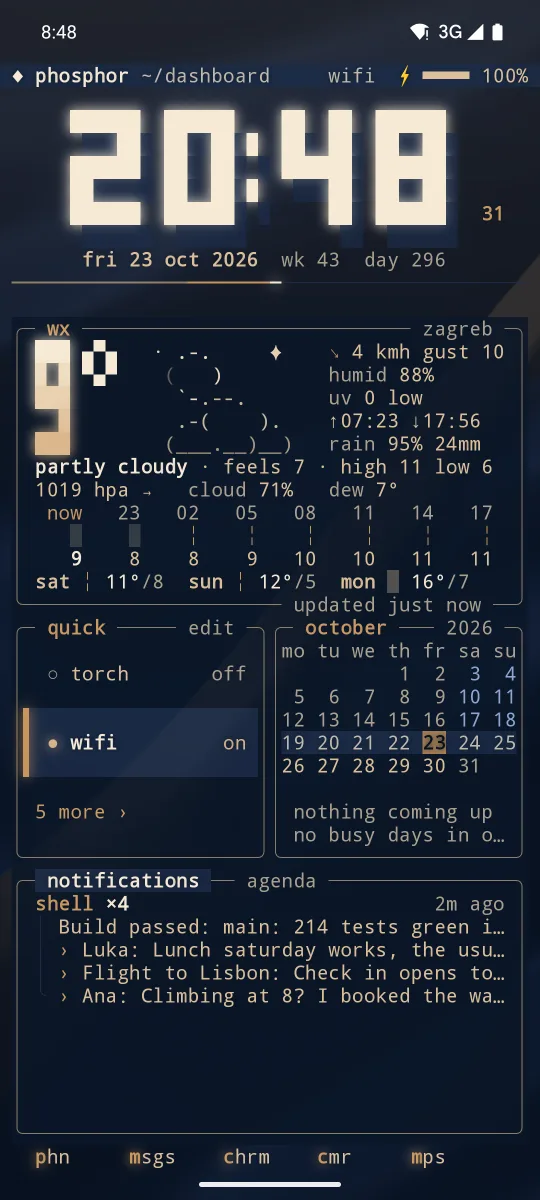
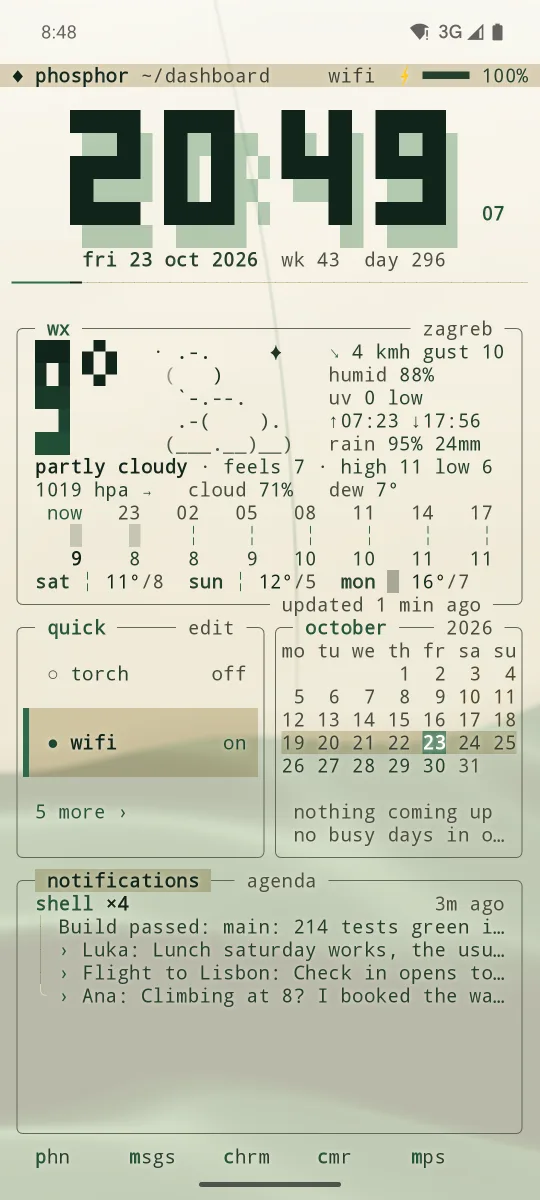
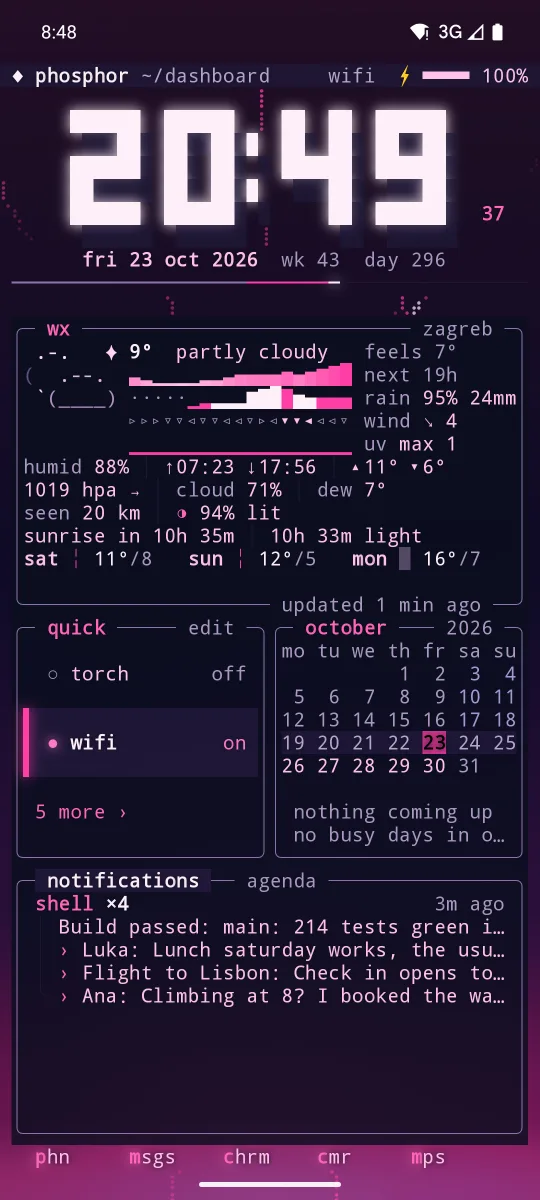
Pick a look is also the first screen of the first run. The phosphor looks are on the home page.
Themes
20 themes come with the app. Dark ones glow like an old monitor: phosphor (black and #0068ff), amber, matrix, ice, crimson, violet, cyan, sakura, toxic, navy and evergreen. Light ones print instead: paper, chalk, riso and forest, with crisp ink, a second ink offset under the clock like a riso print, and paper grain in place of scanlines. Then eink, and four rice palettes in their authors' own colours: catppuccin mocha, tokyo night, gruvbox and nord.
With pro, 31 more: pure black, pure white, gold, ember, jade, orchid, rose gold, blueprint, dune, nebula, miami, glacier and c128; the rice palettes catppuccin latte, dracula, rose pine, everforest and kanagawa; c64 and vt320 in cyberspace.online's own colours; six night themes (red, blue, yellow, pink, rose and green, one colour on black); and five day themes (blue, pink, green, orange and violet on white). The vt320 brings its own VT323 font and gives your font back when you leave it.
The lock screen and the screen saver use the same theme list.
Your own picture
Fine tune, your picture, choose: pick any photo, and it sits behind the grid. On Android 13 and up the photo picker opens, cloud albums too. Phosphor keeps a copy inside the app, so it stays when the original is gone. Text stays easy to read on very bright or very dark photos, photos taken sideways show upright, and a see through image shows your theme behind it, on the lock screen too. use it, pick another and remove are on the same page.
CRT
Fine tune, crt ›: off, glass, amber, green, vhs or curved.
- glass
- free: soft scanlines, a light curved edge and a reflection
- amber, green
- pro: the whole home glows in one colour under a gently curved glass
- curved
- pro: the same curved glass and bezel, in your theme's own colours. On white themes text stays black and crisp.
- vhs
- pro: a rolling tape
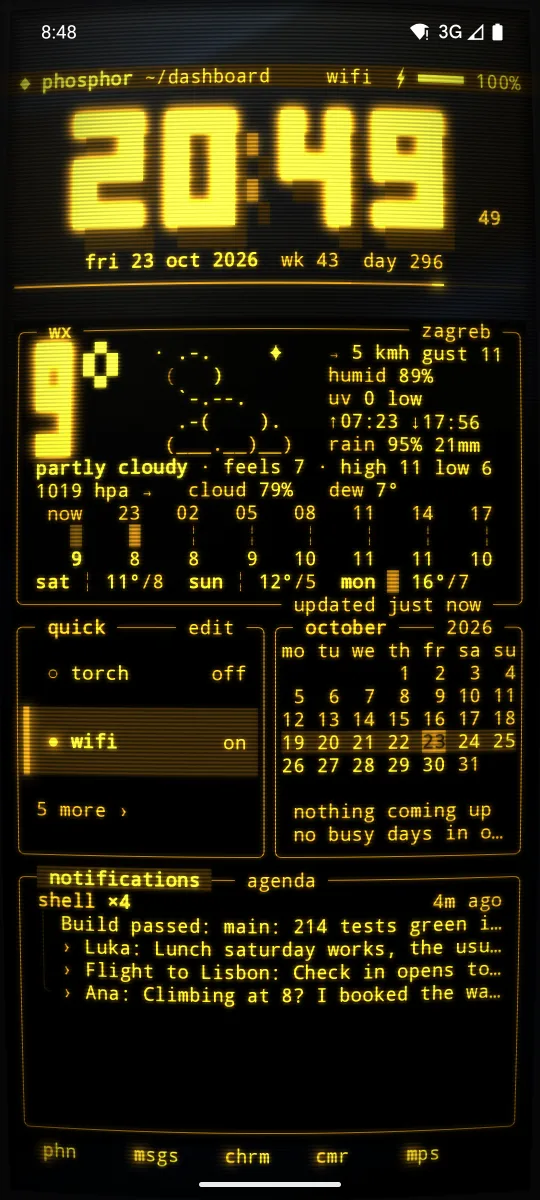
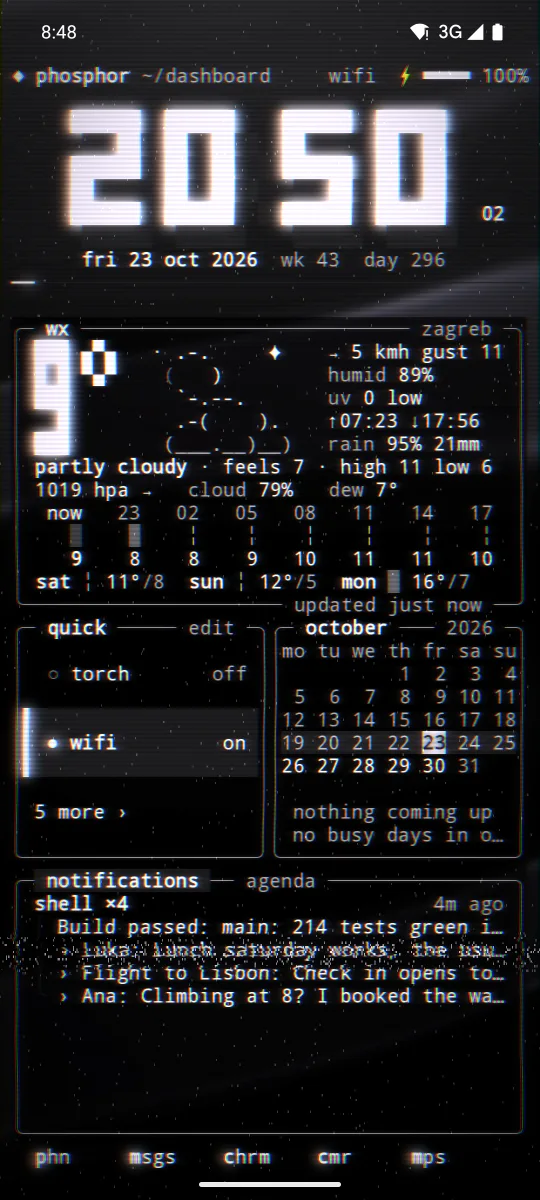
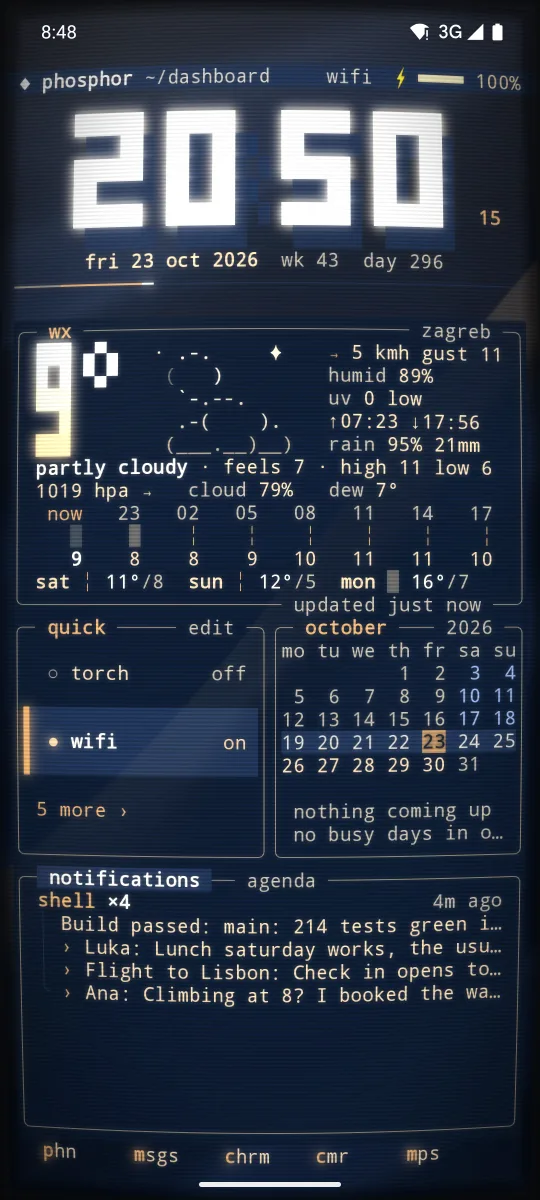
The see through glass setting is gone since 1.65. The home is solid, and a picture shows at the strength its preset was made for.
Day and night
The theme can change by itself: one theme by day, another by night. Open fine tune, day and night ›:
- switch
- off,
by the sunor22 to 7. By the sun turns at sunrise and sunset. 22 to 7 is by the clock: night from 22 to 7. - day theme
- the theme by day.
same as themekeeps your main theme. - night theme
- the theme by night, the same way
- blue light filter
- ‹ › off, or how strong a warm filter is at night, to rest your eyes in the evening
By the sun uses sunrise and sunset where the weather is, worked out on the phone. Before the weather has a place, day is 7 to 19. Turn the switch on with no side picked, and the day side starts on paper, so you see the change.
The theme row changes the side on show, when that side has its own theme. The lock screen and the screen saver follow too. Day and night takes the place of the old night mode: if you had night mode on, it becomes 22 to 7 with ice at night.
Live weather
Turn on live weather in fine tune, and the real weather falls over your scene: rain, drizzle, heavy rain, snow, fog and thunder. It follows the place the weather panel shows. A clear or cloudy sky adds nothing. It falls through the empty cells, so text and panels stay clean. It shows on the home screen; the lock screen keeps its own sky row.
Rain costs about the same as the rain scene. Under a clear sky it costs nothing.
19 motion and frame rate
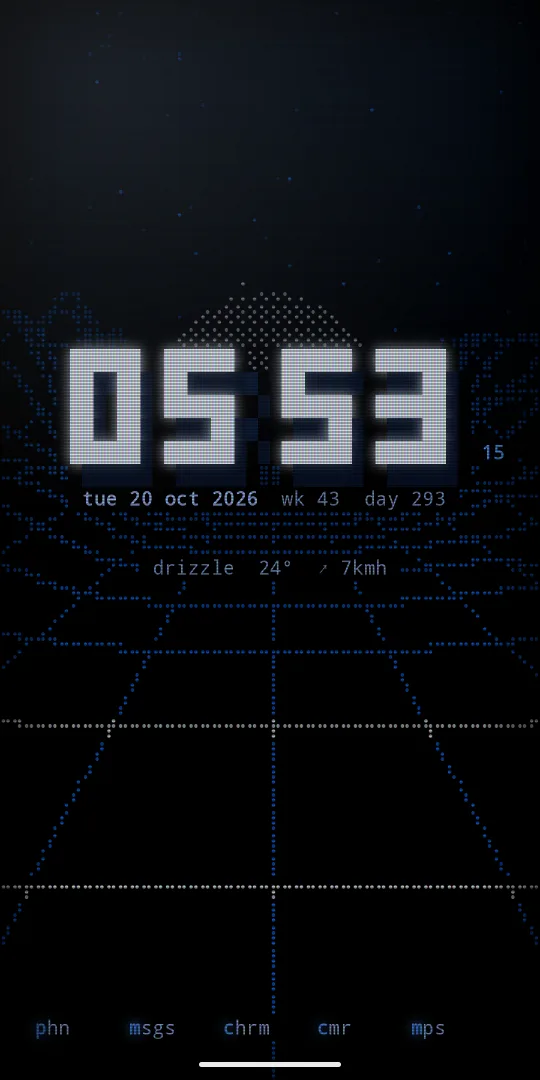
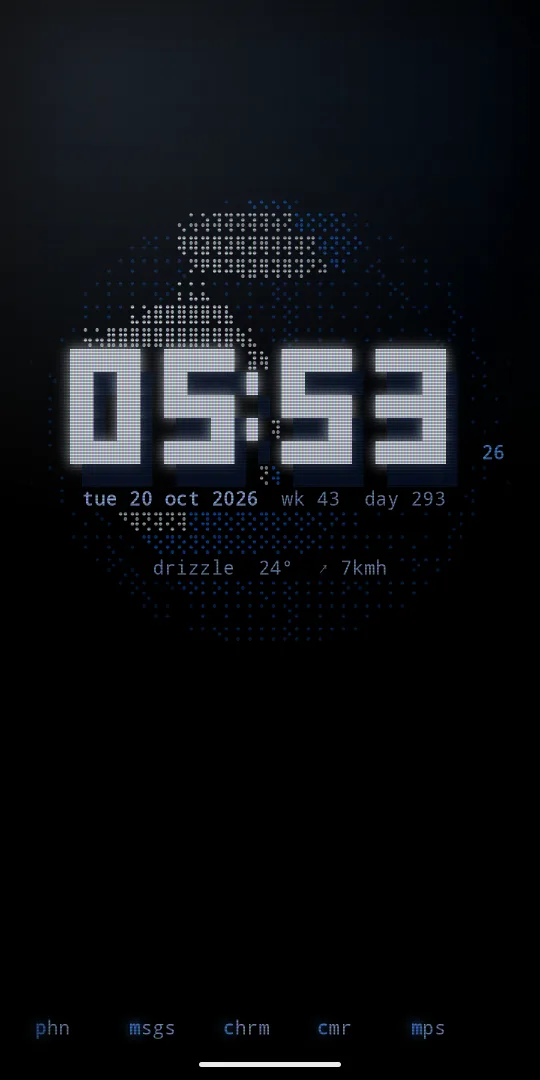
Motion is the scene that moves through the empty cells behind your panels. Step through them in fine tune, motion, or type :motion:
off, rain, stars, embers, snow, aurora, fireflies, warp, tide, constellations, lava, circuit, meteors, storm, fire, plasma, life, pipes, terrain, aquarium, blossom, scope, globe and bonsai. Last comes cycle, which runs through them all.
Only empty cells are painted, so text and panels stay clean. Fire, life, pipes and bonsai grow step by step, and look the same at 30 and 60 frames a second.
Under settings, motion and battery:
- frame rate
- 30, 60 (the default) or max. It sets everything that moves on its own. Touch and scrolling always run at the screen's full rate.
- animations
- off stills the motion
- touch ripples
- a ripple where you touch
- page swipe line
- the bright line where two pages meet as you swipe
- letters by the line
- the flicker of letters that line leaves
Small things you will notice: the screen turns on like an old tube, a sheen runs along every bar, a ripple runs through the grid where you touch, and sparks fly when an app opens.
20 lock screen
Android does not let an app replace the lock screen, but it does show your wallpaper behind it. Phosphor comes with a live wallpaper that draws the lock screen in the same grid, theme and glow as home: a block clock, the date, weather, battery, your next event, how many notifications wait, and a blinking prompt.
Open settings, phone, lock screen, or type :lock:
- set as lock screen
- applies the wallpaper
look
- theme
- match home, or any theme, pro ones too. Match home follows day and night.
- motion
- off draws one still frame a minute
- sky
- weather (the real sky), rain, snow, stars or off
panes
- clock
- big, small or off
- greeting with your name
- a greeting with the name from settings,
you - now playing
- what plays, with real cava bars when the real visualizer is on
- next alarm
- your next alarm
- weather, battery, next event
- turn each pane on or off
- steps, sleep and buds
- a today line with steps, sleep, heart and your buds' battery, from the health and devices panels (pro)
- notifications
- off, names (app names and counts, the default) or full text
- notifications first
- put the notifications above the other panes
android
- hide system cards
- opens Android's own lock screen page
A running countdown, pomodoro or stopwatch shows on the lock wallpaper with its time ticking, and so does your work time while you are clocked in on the punch panel. On Android 16 and up a running timer is also a live chip in the status bar.
The lock screen can be seen by anyone holding your phone. By default it shows app names, times and counts, not message text.
21 lock gesture
Lock the phone with a gesture instead of the power button. It is off by default. Open settings, home, lock gesture ›:
- off
- no gesture
- double tap empty space
- the top bar or any empty cell
- phosphor lock service
- opens Android's accessibility page, where you turn on the Phosphor lock service. It only locks the screen.
- lock now
- try it
Double tap the top bar or any empty spot and the phone locks, like the power button. Fingerprint and face unlock keep working. Panels, borders and buttons keep their own taps. Phosphor shows what the service does before you turn it on. lock phone is also in the go menu, and the setup guide has a lock gesture button.
22 settings map
Hold empty space or tap ◆, then settings, or type :settings. search settings is the first row: type part of a name to find any setting, even on the pages under settings.
- look
- looks, theme, wallpaper, fine tune
- motion and battery
- frame rate, animations, touch ripples, page swipe line, letters by the line
- home
- you, top bar, status bar, keep in place, app dock, app shelf icons, app shelf labels, hide passwords, app order, open the only match, quick actions, keyboard first, pull down, rotation, hinge gap, lock gesture, notifications, notification badges, app list, hidden apps
- clock and weather
- clock, clock font (block, round, led, ascii, shade, round led), date format, units, weather places, calendar app
- feel
- haptics (off, soft, normal, strong), scroll ticks, try every effect
- phone
- lock screen, screen saver, link devices
- privacy
- privacy and permissions. See privacy.
- pro
- phosphor pro, restore purchase, contacts in search, keyglow keyboard
- help
- user guide (this page), report a bug or ask for a feature
- support the developer
- buy me a coffee, and support and live api: an optional subscription, see below
- about
- the version. A tap replays the boot.
rate us sits just above help in the main menu: rate Phosphor on Google Play, or tell us what is wrong. Phosphor never asks on its own.
hidden apps lists the apps you hid, so you can bring one back. hinge gap keeps every panel off the fold on a two screen phone. app shelf icons draws each app's own icon in your theme's inks. Work profile apps say "(work)".
The tour, the cheat sheet, tips, the setup guide, the editor and reset to defaults are in the main menu, under help. The player's rows and the weather style are in each panel's own menu.
You
Settings, home, you: your name, a machine name like pixel, a contact and a motto. They show on the prompt and the top bar, like ◆ sam@pixel, and in fetch, the boot, the whoami panel and the lock screen greeting. They stay on this phone.
rotation steps through follow phone, portrait, landscape and always turns. keyglow keyboard opens Keyglow, a private keyboard in your phosphor colours, on Google Play. Keyglow and Fileglow, the file manager, can both take your theme, picture and CRT tube along.
23 link devices
link devices syncs your theme with Hyprtile or another Phosphor on the same wifi, and with an Omarchy computer through the Phone Sync plugin. Turn link on, pick the other device, and check that both screens show the same six digit code.
It stays on your own network. Only theme names and colours go to devices you paired. It is off by default. On Android 17, a short notice comes first, then Android asks for local network access when you turn link on. More on the Phone Sync page.
24 phosphor pro
The app you bought is complete and yours to keep. Pro is an optional extra on top: one purchase adds every extra, now and later, with no subscription. Open settings, phosphor pro, then add pro extras. Without pro, a pro panel shows a padlock card that opens this menu.
what pro adds lists each extra: android widgets, 2fa codes, text and json editor, passwords, widget stacks, clipboard history, friend, a little pet, news reader and ticker, the cyberspace client, gps, satellites and sky, sensors, level and compass, live world panels (radar, aurora, quakes, iss, rates and more), ping and git, ambience, contacts in search, pro themes and crt looks. Trace, matchday, devices, health, people, wifi, ticker, lyrics, screen time, data, apod, speed, uptime and hass are pro panels too, in the pro group of the picker, and so are seven of the ready pages. See pro panels, crt and pro themes.
restore purchase brings pro back on a new phone.
Support and live api
Separate from pro, and fully optional: a 0.99 a month subscription through Google Play that pays for bug fixes and the live feeds Phosphor shows, like weather, radar, the ISS and quakes. It unlocks nothing, and nothing is locked without it. Open settings and scroll to the end: support and live api is under support the developer. Once you subscribe, the same row says thank you and opens Google Play, where you can cancel any time.
25 battery
Home draws only when something changes, or while a motion scene, live weather or an effect moves. Nothing runs in the background: no services and no timers, apart from timers and the pomodoro alarm when they ring, and the radio while it plays. The lock screen stops drawing when the screen is off.
To save more:
- Set
frame rateto 30. - Set
motionin fine tune to off. Terrain is the heaviest scene. - The news panel fetches only while it is on screen. The gps panel has
listen withbalanced or low power. - Pick the big numbers or waybar weather style: they do not move.
- Live weather in rain costs about the same as the rain scene. Turn it off to save that.
- Turn
motionoff for the lock screen. - Pick a dark theme on an OLED phone, or eink paper, where nothing moves.
Battery saver brings motion to 30 frames a second and holds the weather sky still, unless you picked a frame rate yourself. Android's "remove animations" holds everything still.
26 accessibility
- Everything you touch has a target of at least 48dp.
- Text is lifted to a 7:1 contrast on its background in every theme. The big clock follows the 3:1 rule for large text.
- TalkBack reads every button, row and panel, and the tour announces each step.
- The system font size is honoured up to 200%. With large text, each page becomes one full size panel, and menus wrap long titles and values instead of cutting them.
- No action needs a swipe: tap the path for the
gomenu, and sliders have−and+. - Lock gesture lets you lock the phone with a double tap instead of reaching the power button.
- TalkBack reads the current choice in every list, and each page by its name.
- Blinking stays under 3 flashes a second. Android's "remove animations" stops motion.
27 privacy and permissions
Settings, privacy and permissions opens the privacy page. It lists our promises: no ads, no tracking, no analytics, no crash reports, no error reports, no account and no AI. Phosphor has no server of its own: what it fetches comes straight from each service to your phone.
Some things go past the phone only when you turn them on: the cyberspace sign in (pro), link devices, the network panels you place, and Android backup of your settings and notes. 2fa codes, the clipboard and sign ins never go into a backup.
Every permission is optional and asked only when you turn on what needs it. The page lists each one with whether it is allowed now, and a tap opens Android's page for Phosphor, where you can change it:
- location
- weather where you are, rounded to about 1 km. A typed place works without it. Precise only for the gps panel (pro).
- calendar
- the agenda, month and meeting panels
- notification access
- the log, badges and the media panel, read on the phone and never sent
- microphone
- only for the real visualizer, off until you turn it on, with a notice first. Nothing is recorded, kept or sent.
- contacts
- only for contacts in search (pro), off until you turn it on, with a notice first
- camera
- only to scan a 2fa QR code (pro). No picture is kept.
- nearby devices
- the devices panel (pro): names and battery of paired gear. It never scans.
- health and activity
- the health panel (pro) and steps on the lock wallpaper, read only
- notifications
- the radio's controls in the shade and timers that ring
- local network
- link devices and the router ping, on your own wifi only
- accessibility service
- only for the lock gesture: it locks the screen and reads nothing
The page also lists what Android allows without asking, like internet, alarms and vibrate, each with what it is for.
Day and night works out sunrise and sunset on the phone, from the place the weather already uses. Neither your location nor the gps position is sent to us. The app connects only for the features you use: the weather and a typed city, the radio while a station plays, and the panels you add that fetch from the web (air quality, holidays, on this day, news, radar, aurora, quakes, the space station, launches, rates, ping, git, matchday and cyberspace). Every host and what it receives is in the full privacy policy, the last row of the privacy page.
28 reset to defaults
Main menu, help, reset to defaults puts look, pages and panels back to a fresh install. Notes, weather places, pinned apps and linked devices stay.
It saves your settings first. Open the same row again and tap bring back the saved copy to undo, or keep my settings to leave it.